

Install once, then use recorded workflows, scheduled tasks, and multi-tab triage to offload the dashboard-checking grind to Claude.
See the workflow in action, tap through the tabs below:
$ five-minute install
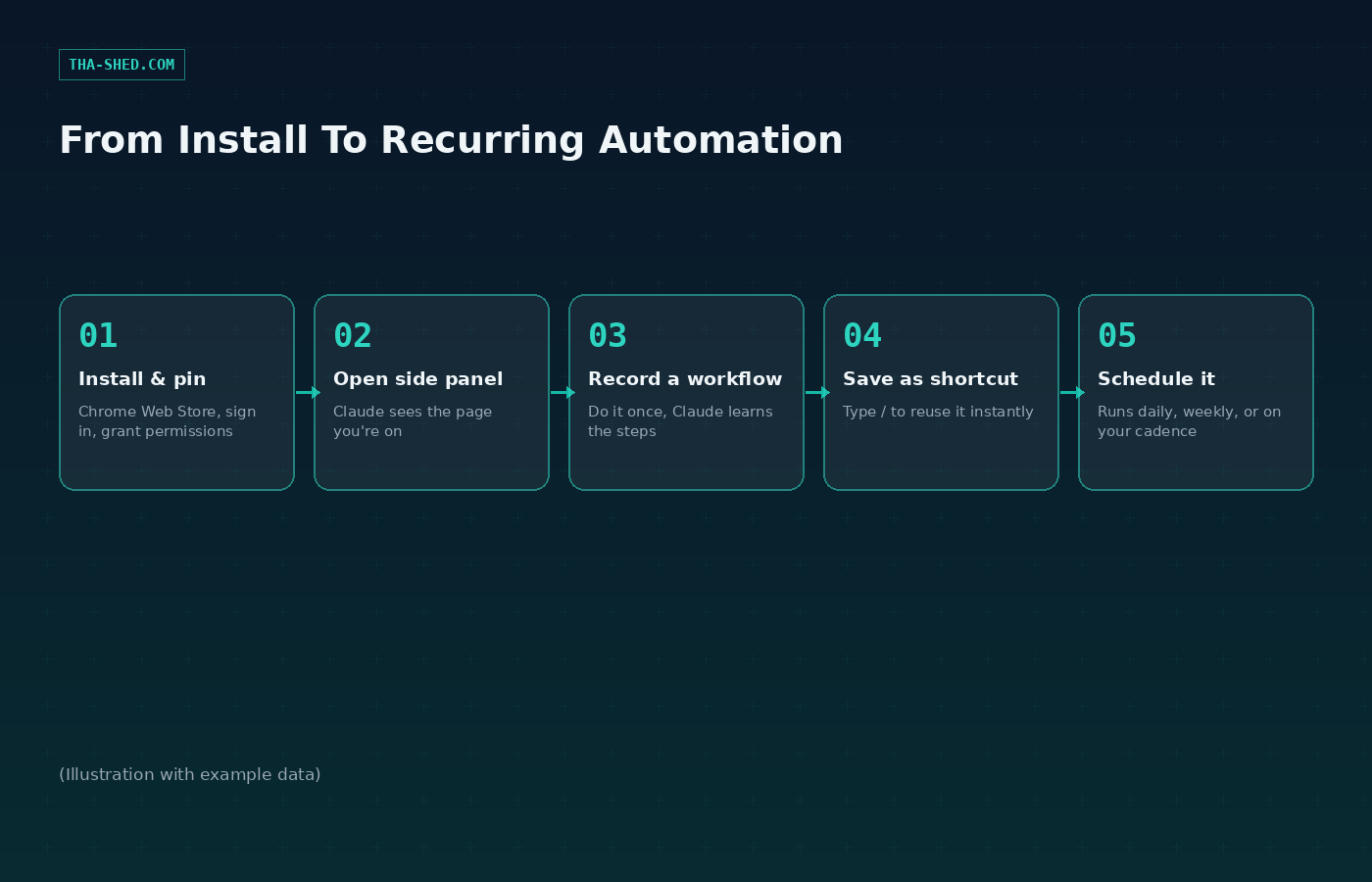
1. Open Chrome, visit the Chrome Web Store
2. Search "Claude", click Add to Chrome
3. Sign in with your Claude account
4. Pin the extension (puzzle icon -> thumbtack)
5. Grant the requested permissions

Requires a paid plan: Pro, Max, Team, or
Enterprise. Not available on Free, other
Chromium browsers, or mobile.
$ teach it a repetitive admin task, once
Click the record icon in the panel, then:
1. Open the internal dashboard
2. Click "Export CSV"
3. Rename the download with today's date
4. Upload it to the shared drive folder

Stop recording, save as a shortcut. Next
time, just run the shortcut or schedule it.
$ turn a shortcut into a recurring check
Click the clock icon on any saved shortcut
and set a cadence: daily, weekly, monthly,
or annually. Claude runs it in the
background (Chrome must stay open) and
notifies you when it finishes or needs
your approval.
Screenshots capture everything visible. Claude sees whatever is on the tab it’s working in. Don’t open the side panel over sensitive data, and consider a separate browser profile for anything confidential.
Prompt injection is a real risk. Malicious instructions hidden in a page can try to hijack Claude’s actions. Safety classifiers catch most of it, but stick to trusted sites for anything sensitive.
Some things are off-limits by design. Claude won’t trade stocks, bypass captchas, or scrape faces, and it isn’t available for HIPAA-covered orgs.
What Claude in Chrome Actually Is (And What It Isn't)
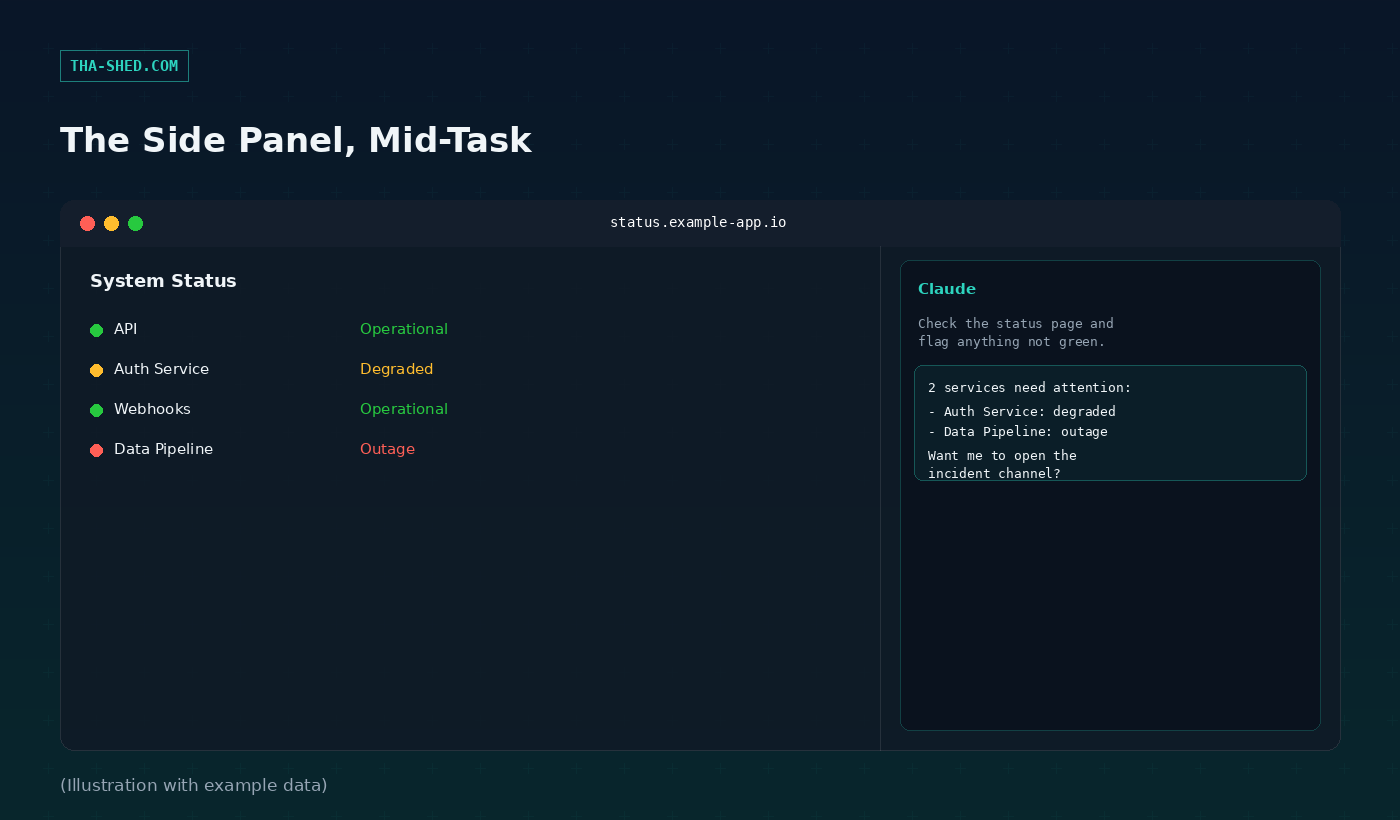
Claude in Chrome is a browser extension that opens Claude in a side panel next to whatever tab you're on. It sees the page, and it can read, click, type, navigate, and fill forms the way a person would. It's currently in beta in the Chrome browser (it's generally available inside Claude Cowork and Claude Code), and it is not a general automation framework. It works one browser session at a time, on sites you point it at, not as a background service crawling your whole company.
For DevOps and security folks, think of it as a pair of hands for the browser-based grind: status dashboards, admin consoles, internal tools with no API, ticket queues. Anything with a real API is still better served by a script or a proper integration.
Quick Setup
Claude in Chrome ships with paid Claude plans: Pro, Max, Team, and Enterprise. It is not available on the Free plan, on non-Chrome Chromium browsers, or on mobile. Install it from the Chrome Web Store, sign in with your Claude account, pin the extension so it's always one click away, and grant the permissions it asks for. Those permissions are specific and documented: scripting to read page text, debugger to actually click and type, tabGroups to keep Claude's tabs visually separate from yours, alarms for scheduled tasks, and so on. None of it is a black box.
Click the Claude icon in your toolbar to open the side panel. It stays visible while you browse, so you don't have to switch windows to get help.
The Mindset: Teach It Once, Reuse Forever
The extension's best feature isn't any single click or command, it's that Claude can learn a workflow by watching you do it once. Instead of writing a script to scrape a dashboard or automate a form nobody bothered to give an API, you just do the task the normal way with the recorder on. Claude captures the steps, and you get a reusable shortcut you can run on demand or put on a schedule.
That changes the math on "is this worth automating." A one-off internal tool that would never justify writing and maintaining a script becomes worth automating the moment recording it takes five minutes.
7 Workflows That Actually Save Time
1. Multi-tab status page triage
Drag your status pages, monitoring dashboards, and incident tracker into Claude's tab group, then ask it to summarize what's not green across all of them. Claude can view and interact with every grouped tab at once instead of you tabbing between five browser windows every morning.
2. Recorded workflows for admin consoles without an API
Plenty of internal SaaS tools and legacy admin panels have no API worth using. Record the click path once (export this report, rename it, upload it here) and save it as a shortcut. It turns a five-minute manual chore into a one-click or fully scheduled task.
3. Claude Code and Chrome as a build-test-verify loop
Build a fix in Claude Code in your terminal, deploy it somewhere Claude can reach, then have the Chrome extension verify it in the browser. Claude can read console errors, network requests, and DOM state directly, which is a faster debugging loop than screenshotting errors back into your terminal session.
4. Scheduled recurring checks
Save a shortcut, then click the clock icon to run it daily, weekly, monthly, or annually. A daily "check the cert expiry dashboard and flag anything under 14 days" shortcut replaces a recurring calendar reminder that somebody eventually starts ignoring.
5. Enhanced navigation on the tools you already use
Claude has built-in knowledge of how to navigate Slack, Google Calendar, Gmail, Google Docs, and GitHub, so commands like "open the PR and summarize the review comments" or "schedule a meeting with the on-call team" work without you spelling out every click.
6. A shared shortcut library for the team
Once you've got a prompt that reliably does what you want, save it as a shortcut and reuse it by typing "/" in the chat. Document your best ones (weekly access review, deploy checklist walkthrough) so teammates aren't rebuilding the same browser workflow from scratch.
7. Background triage while you work on something else
Claude keeps working on multi-step browser tasks even after you switch tabs, as long as Chrome stays open. Turn on notifications and let it churn through a background task like compiling data from twelve tickets while you're heads-down on something else, then review its output when it pings you.
Safety and Gotchas
The biggest risk with any browser-using AI is prompt injection: instructions hidden in a page's content (invisible text, a malicious to-do item, a poisoned comment) that try to trick Claude into doing something you didn't ask for. Claude in Chrome runs safety classifiers that screen incoming content and every action before it executes, and flagged actions get blocked or paused for your approval. That risk is not zero, so keep sensitive workflows on trusted sites.
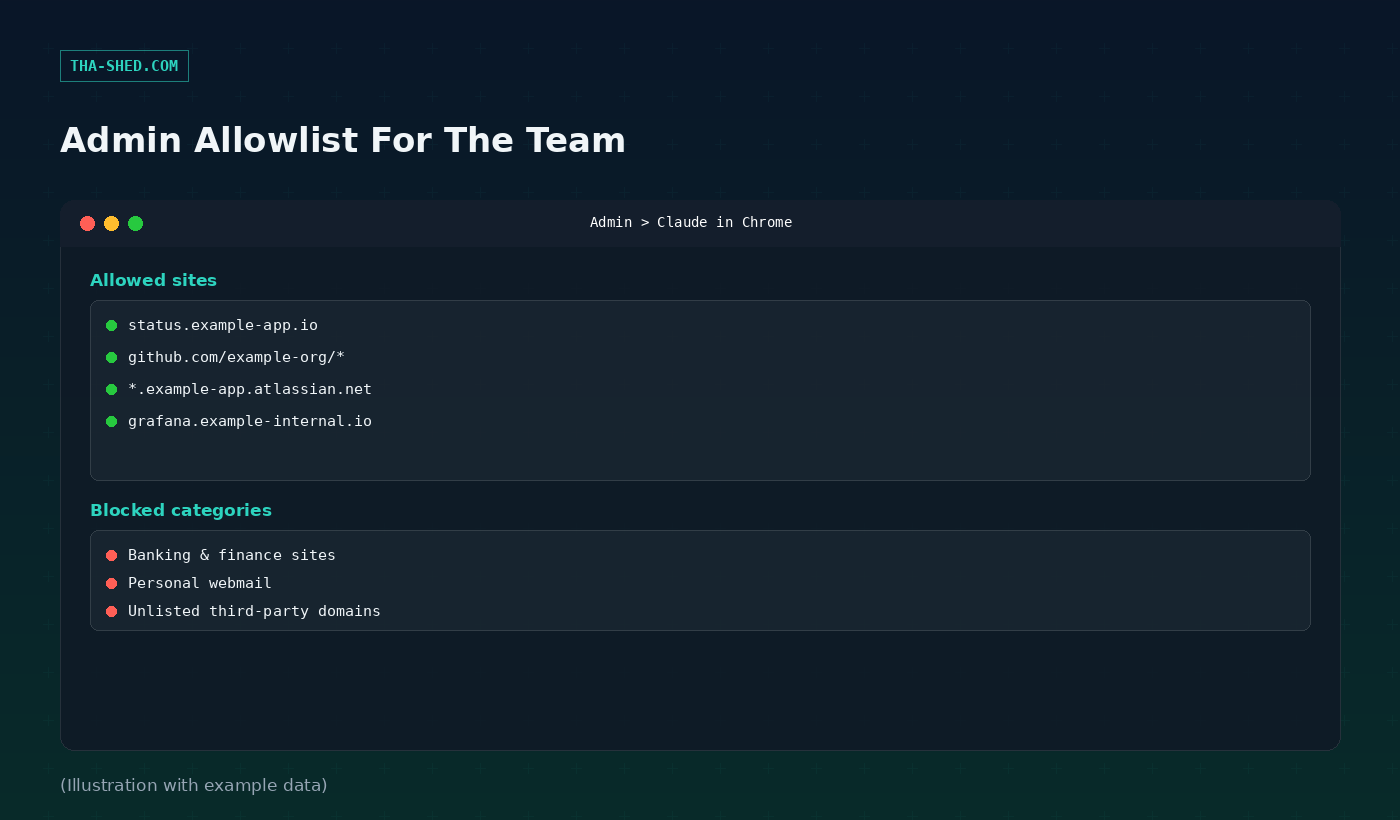
Claude takes screenshots of the tab it's working in to understand the page, which means anything visible on your screen becomes part of the conversation. Don't run it over sensitive data, and consider a dedicated browser profile without access to banking, healthcare, or other confidential accounts. Claude in Chrome also isn't available to organizations covered by HIPAA, and it's explicitly barred from stock trading, bypassing captchas, entering sensitive data, and scraping facial images. On Team and Enterprise plans, admins can lock this down further with site allowlists and blocklists, or disable the extension org-wide.
Usage and Cost Tips
There's no separate charge, it's included with Pro, Max, Team, and Enterprise plans, so there's no reason not to try it if you're already on one of those. Since it's still in beta in the browser, expect occasional rough edges, especially on sites Claude hasn't seen much of. Start with the built-in knowledge sites (Slack, GitHub, Google Calendar and Docs, Gmail) where navigation is already smooth, then branch into recording your own workflows for internal tools once you trust how it behaves.
FAQ
Does Claude in Chrome work in Edge, Brave, or other Chromium browsers? No. It's built specifically for Google Chrome and isn't supported on other Chromium-based browsers or on mobile.
Can it enter my passwords for me? Not directly. Claude is prohibited from handling sensitive data like passwords itself, but on macOS in beta, 1Password for Claude lets it request a login and have 1Password fill the credential, so Claude never sees the password or one-time code.
Can our admin restrict which sites Claude can touch? Yes, on Team and Enterprise plans admins can configure allowlists and blocklists to restrict Claude in Chrome to approved sites, or disable the extension for the whole organization.
Where to Go Next
Install it, pin it, and record your first workflow on something low-stakes: a status page you already check by hand every morning is a good place to start. If you want the terminal-first companion to this, we covered Claude Code's DevOps and security workflows recently, and for a browser-based tool from outside the Claude ecosystem, see our ChatGPT workflows breakdown. If you're rolling AI tooling out past yourself, our courses go deeper on turning individual habits into team-wide process.