
Cowork just moved into the main Claude app and can run whole workflows while you’re away. Here’s the setup, the mindset shift, and seven workflows worth stealing.
See the workflow in action, tap through the tabs below:
$ describe the outcome, not the steps
Connect the "Q3 Reports" folder.

Pull last week's deploy metrics from the
CSVs in there and give me a one-page
summary I can post in #ops today.
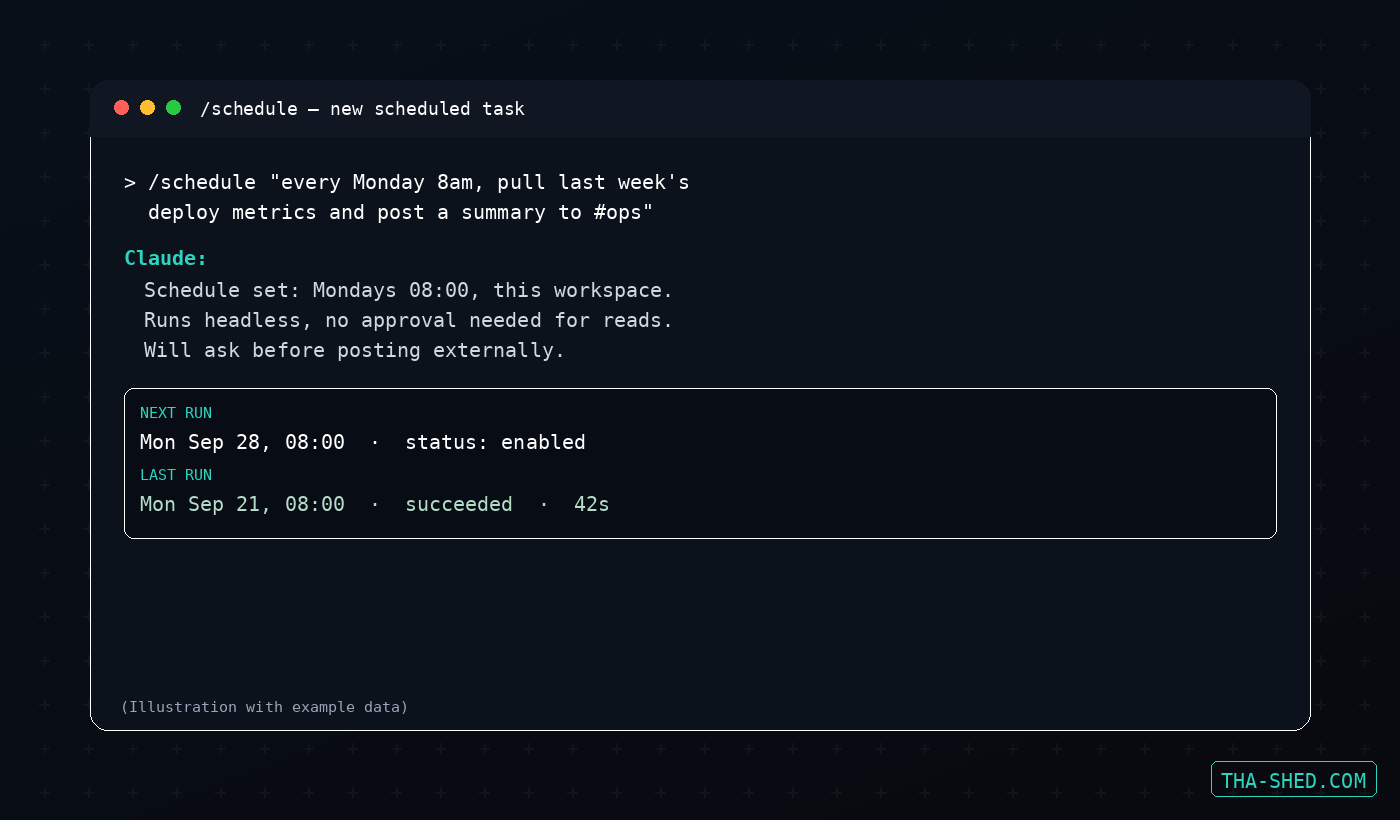
$ /schedule
/schedule "every Monday at 8am, pull last
week's deploy metrics from the Reports
folder and post a one-page summary to
#ops-weekly"
$ Customize -> Plugins -> Browse plugins
1. Open Customize in the sidebar
2. Select Plugins, then Browse plugins
3. Pick a plugin, click Install
4. Sign in if a connector needs auth
5. Open it to enable/disable components
Before you turn on Auto or Skip mode: keep sensitive folders (financial records, credentials, anything with stored payment info) disconnected. Scope browser access to sites you actually trust, since an untrusted page is the main way hidden instructions reach the model. Deletion always needs an explicit yes, in every approval mode, no exceptions. For scheduled tasks specifically, start narrow and check the output regularly since nobody’s watching the run live.
What Cowork Actually Is
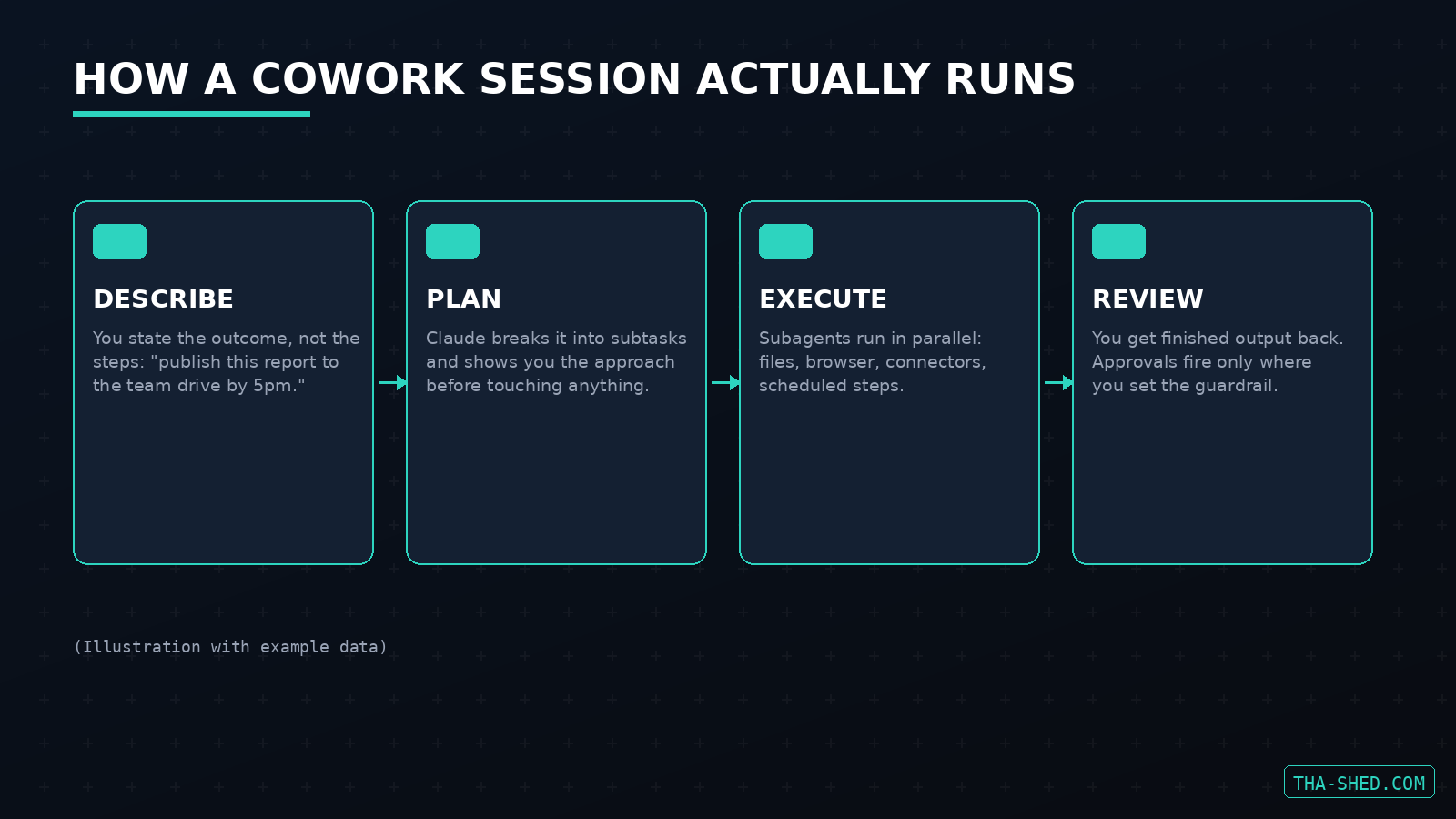
Claude Cowork is the mode where you stop giving Claude one instruction at a time and start handing it an outcome. You describe what you want done, you step away, and you come back to finished work instead of a wall of chat turns you have to babysit. Under the hood it breaks your request into subtasks, runs them (sometimes in parallel, using sub-agents for the pieces that don't depend on each other), and checks back in only where you've told it to.
The timing matters here. As of September 2026, Anthropic folded the separate Cowork interface into the main Claude app. There's no more toggling between "chat mode" and "Cowork mode": you type what you need, and Claude routes it to chat, Cowork, Artifacts, or Design automatically. Two new output types, Docs and Slides, launched alongside the merge, both editable on mobile and shareable by link. If you used Cowork before the merge and haven't opened Claude since, the UI will look different the next time you do.
Quick Setup
Cowork runs on paid plans only: Pro, Max, Team, and Enterprise. It's available on Claude Desktop for macOS and Windows, in beta on the web and mobile apps, and in the Chrome side panel (rolling out to Pro now, already on for Max and Team). There's nothing to install beyond the desktop app if you want local file access and browser automation.
To start a session: open Claude, describe the task in plain language, and review the plan it proposes before it touches anything. If you want it working with files on your machine, connect a folder first, either when it asks or from the folder picker in the sidebar. That's genuinely the whole setup. The harder part is the next section.
The Mindset Shift
Most people's first Cowork session fails the same way: they type instructions like they're writing a script. "Open the spreadsheet, filter column C, copy rows where status equals active..." That's not the point. Cowork earns its keep when you describe the destination and let it figure out the route. "Pull this week's deploy numbers from the Reports folder and get me a one-page summary I can post in #ops by end of day" gives it enough to plan, execute, and self-correct. A step-by-step script gives it nothing to plan around, and you end up doing the thinking Cowork was supposed to do for you.
The other adjustment: treat the plan review as a real checkpoint, not a formality. Claude shows you its approach before it starts. Reading that for ten seconds catches a wrong folder or a misread deadline before it costs you a re-run.
7 Workflows You Can Steal
1. Connect a folder and run a real first task
Skip the toy example. Connect the folder you actually use for a recurring task (a reports drive, an incident-notes folder, a client deliverables directory) and give Cowork something with a real deadline attached. It reads what's there, works in place, and you can watch the task list fill in as it goes.
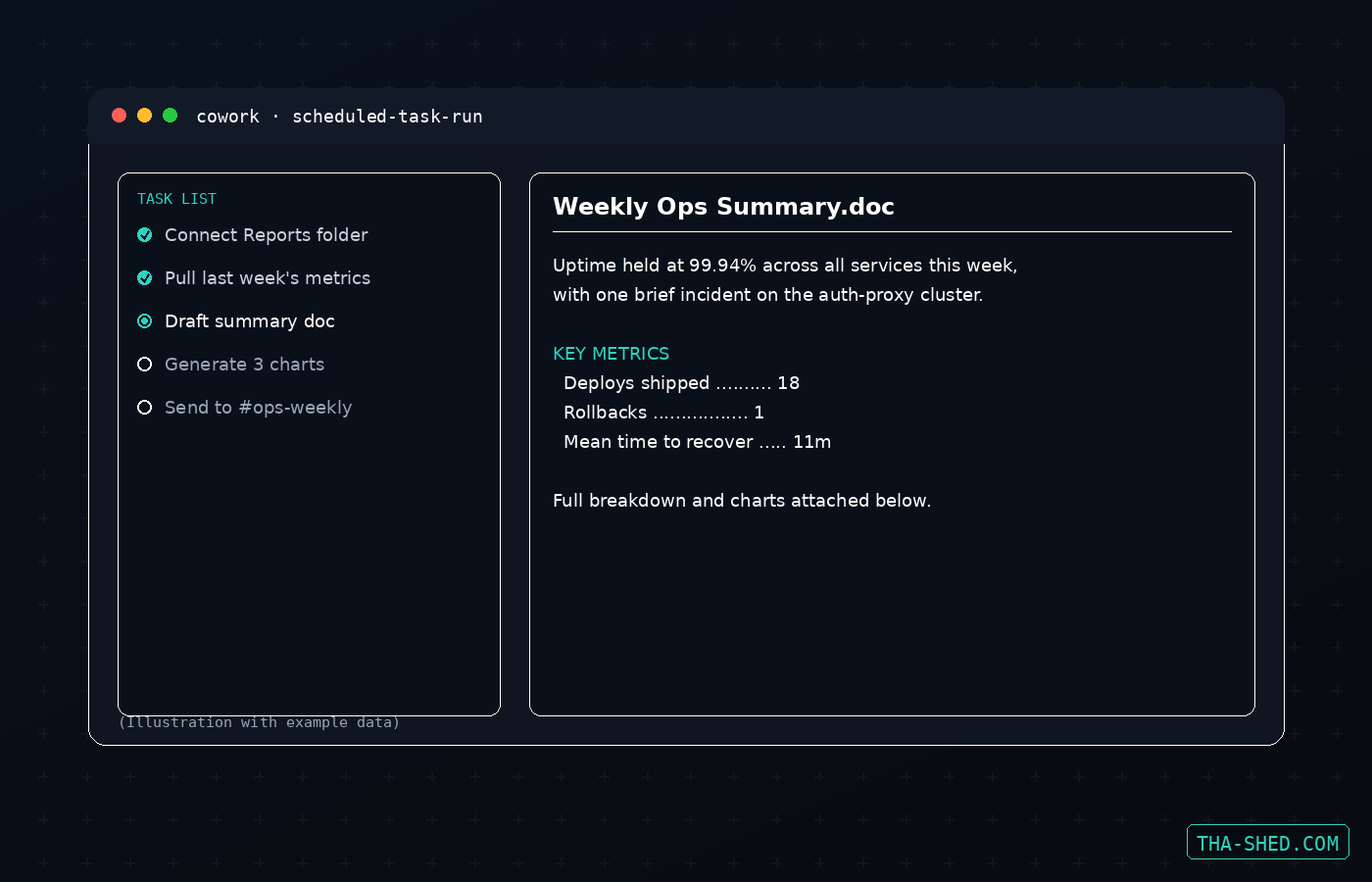
2. Turn a recurring report into a scheduled task
The /schedule command sets up recurring or on-demand runs: "every Monday at 8am, pull last week's deploy metrics and post a summary to #ops." Once it's set, that session fires on its own, no live approval needed for the parts you've already trusted it with. Scheduled tasks are the single highest-leverage Cowork habit for DevOps and security teams because it turns "someone has to remember to do this" into "this just happens."
3. Install a plugin instead of re-explaining yourself
Plugins bundle skills, MCP connectors, sub-agents, and hooks into one install. Open Customize, then Plugins, then Browse plugins to see the official marketplace, or add a team's own GitHub repo as a private marketplace. If you keep re-explaining the same runbook format or the same incident-report structure every week, that's a plugin waiting to happen instead of a prompt you retype.
4. Let it drive the browser for research and form-fill
Cowork can open sites, read them, and fill forms without you narrating each click. This is where it earns its pay on repetitive admin work: status page updates, internal ticket triage, pulling structured data off a dashboard nobody's built an API for yet. Keep browser permissions scoped to sites you trust, since a page you didn't vet is the main way untrusted content gets in front of the model.
5. Generate a living Doc or Slide deck as the output
Instead of asking for a wall of markdown, ask for a Doc or a Slides deck directly. Both are editable in place, shareable by link, and open fine on a phone, which makes them a better default than a file attachment for anything a teammate needs to react to or edit.
6. Wire up an MCP connector for cross-app work
Connectors give Cowork access to the services you already use (mail, drive, chat, ticketing) without you copy-pasting between tabs. A task like "check the on-call channel for anything unresolved from last night and summarize it" only works cleanly once the connector is in place. Set connector approvals to ask by default until you've watched it use one a few times.
7. Match permission mode to the blast radius
Cowork has three approval modes: Manually approve (you sign off on every action), Automatically approve (Claude screens each action for safety and asks only when something looks risky), and Skip all approvals (nothing gates it, though permanent deletion still requires an explicit yes no matter what). Use Manual for anything touching production, billing, or a customer-facing surface. Auto is the sane default for research, drafting, and read-heavy work. Save Skip for sandboxed, low-stakes, easily-reversible tasks, and even then keep an eye on the output.
Safety and Gotchas
Cowork sessions run in isolated cloud sandboxes that can't reach your home or company network and get torn down when the session ends. That protects your infrastructure, but it does not stop Claude from reading a malicious web page or acting on hidden instructions buried in a document you handed it, so treat prompt injection as the real threat model, not a hypothetical one.
A few concrete habits: don't connect folders holding financial records, credentials, or anything you wouldn't hand a new contractor on day one. Keep browser access scoped to sites you trust rather than "the open internet." Block computer-use access to healthcare portals, banking sites, and anything with stored payment info. For scheduled tasks specifically, start with low-risk, easily-reviewed work, since by definition nobody's watching the run live, and check the output regularly rather than assuming silence means success.
Usage and Cost Tips
Cowork is bundled into the paid tiers, not sold separately. Pro runs $17 to $20 a month depending on billing cycle and includes Cowork, Claude Code, and the Docs, Slides, and Design surfaces. Max starts at $100 a month and layers on a 5x or 20x usage multiplier plus priority access, which matters if you're running several scheduled tasks a day. Team seats run $20 to $25 a month standard, with a premium seat at $100 to $125 for 5x the usage. If your org is on Enterprise, cloud sessions are off by default and need an admin to turn them on, so if Cowork isn't showing up for you, that's the first thing to check with IT before assuming something's broken.
Practical cost lever: scheduled tasks running daily add up fast if they're doing heavyweight work every run. Keep recurring tasks narrow (pull this, summarize that) and save the wide-open "figure it out" requests for sessions you're actively watching.
FAQ
Is Cowork the same thing as Claude Code?
No. Claude Code is a command-line tool built for software development inside a repo. Cowork is the broader task-execution mode for general work: files, browsers, documents, scheduled runs. They share underlying agent tech and plugins can extend either one, but Cowork is not a coding tool specifically, and Code isn't built for connecting to your Drive.
Can Cowork actually run without me watching it?
Yes, that's the point of scheduled tasks and Automatically approve mode, but "unattended" isn't the same as "unsupervised forever." Anthropic's own guidance is to review outputs regularly and watch for scope creep, meaning the task quietly starting to touch more than it originally did.
What happens to my files after a session ends?
The sandbox itself is torn down and can't be reached again. Anything Cowork wrote back to a connected folder or an external service (your Drive, your inbox, a Doc) persists normally, since that's the point of connecting it in the first place.
Try It This Week
Pick one recurring task you already do by hand every Monday and give it to Cowork with the outcome stated plainly, not the steps. Then, if it goes well, turn it into a scheduled task and stop doing it manually. If you want the connector and MCP side of this deeper, we covered the mechanics in our Claude MCP connectors tutorial, and if you're pairing Cowork with terminal-side agent work, see our Claude Code automation piece.