

Cursor wires AI straight into the editing loop instead of bolting on a chatbot, here is the plan-first mindset and 7 workflows that actually save a DevOps or security engineer hours, not just keystrokes.
See the workflow in action, tap through the tabs below:
$ install the CLI agent, mac / linux / WSL
curl https://cursor.com/install -fsS | bash
agent --version
$ plan before you build
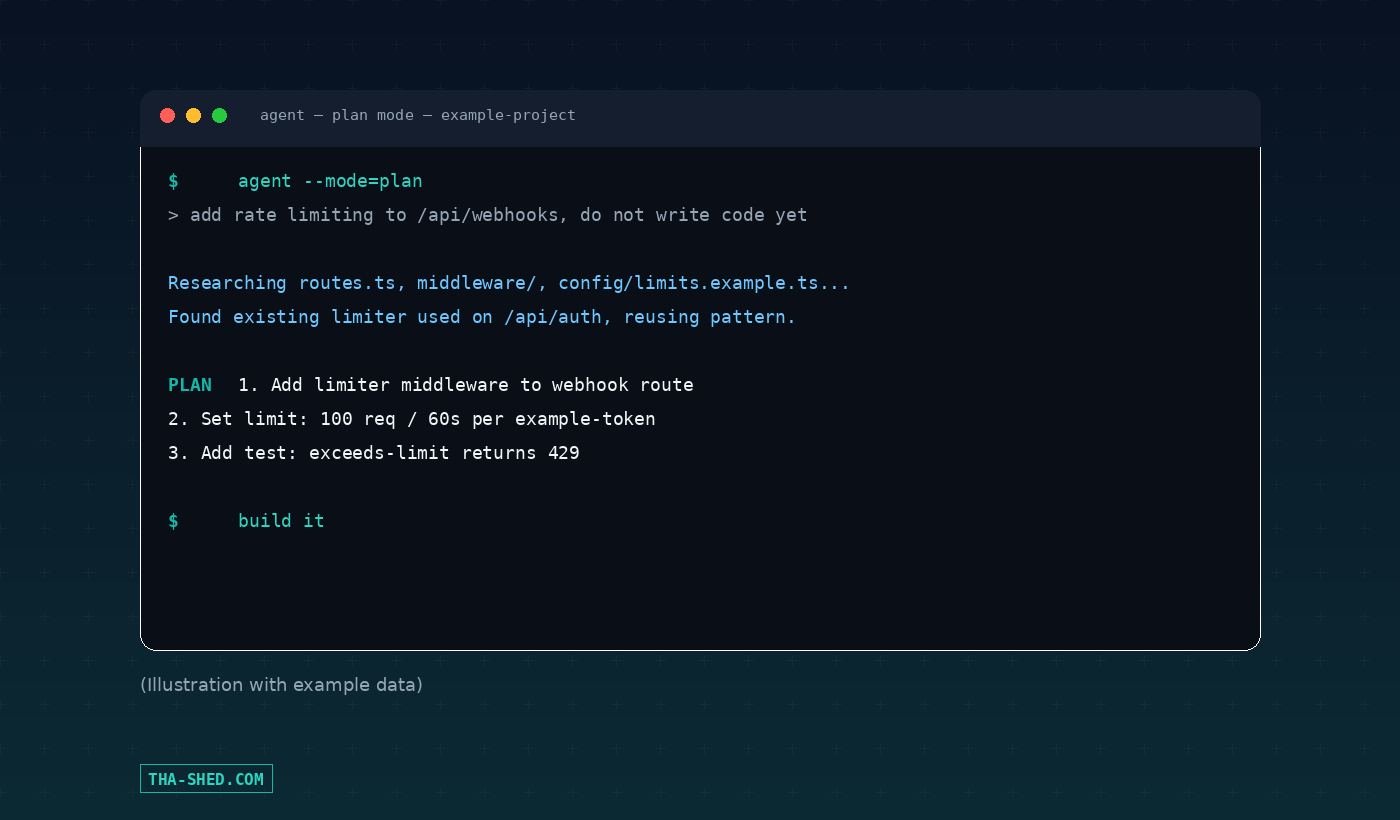
agent --mode=plan
> add rate limiting to /api/webhooks, do not write code yet
$ .cursor/mcp.json
{
  "mcpServers": {
    "internal-docs": {
      "command": "npx",
      "args": ["-y", "mcp-server-docs"],
      "env": { "API_KEY": "${env:DOCS_API_KEY}" }
    }
  }
}
MCP servers can execute code. Verify the source, review what data and APIs it touches, use restricted keys, and audit anything critical before install.
Non-interactive CLI mode has full write access with no approval prompts, exactly what makes it useful in CI and exactly what makes a bad prompt dangerous. Scope it to a branch.
Command approval exists for a reason. Read what a terminal command actually does before approving it, especially near credentials or firewall rules.
What Cursor Actually Is
Cursor is a code editor built on top of VS Code, except the AI isn't bolted on, it runs the show. Every part of the editing loop, autocomplete, chat, multi-file refactors, terminal commands, gets an AI layer wired straight into it. You still get your VS Code extensions and keybindings. What changes is that you can now describe a task in plain English and watch an agent plan it, write the code, run your tests, and fix what breaks, all without you touching every file by hand.
For DevOps and security folks specifically, the pitch is less "look, magic" and more "less time on boilerplate, more time on the parts that actually need a human." Writing a Terraform module, auditing a log parser, or fixing a flaky CI script are all places where an agent that can read your repo and run commands saves real hours.
Quick Setup
Grab the desktop app from cursor.com/download, sign in, and open your project folder. That's the GUI half. The half that matters more for this audience is the CLI agent, since it drops straight into scripts, CI pipelines, and remote boxes where a full editor isn't an option.
curl https://cursor.com/install -fsS | bash
agent --version
On native Windows, use PowerShell instead: irm 'https://cursor.com/install?win32=true' | iex. Add ~/.local/bin to your PATH if the verify step comes back empty, then run agent to start your first session.
The Mindset: Plan Before You Prompt
The single biggest mistake people make with Cursor is treating it like autocomplete with extra steps: type a vague request, get a pile of code, spend twenty minutes untangling what it actually did. Flip that. For anything that touches more than one file or has more than one reasonable approach, switch to Plan Mode first (Shift+Tab in the editor, /plan in the CLI). The agent researches your codebase, asks clarifying questions, and hands you a reviewable plan before it writes a single line. If the plan is wrong, you fix the plan, not a half-finished implementation. That one habit will save you more time than any individual feature on this list.
The corollary: when a running agent goes off the rails, don't try to patch it with follow-up prompts. Revert, sharpen the plan, run it again. It's faster than it sounds.
7 Workflows That Actually Save Hours
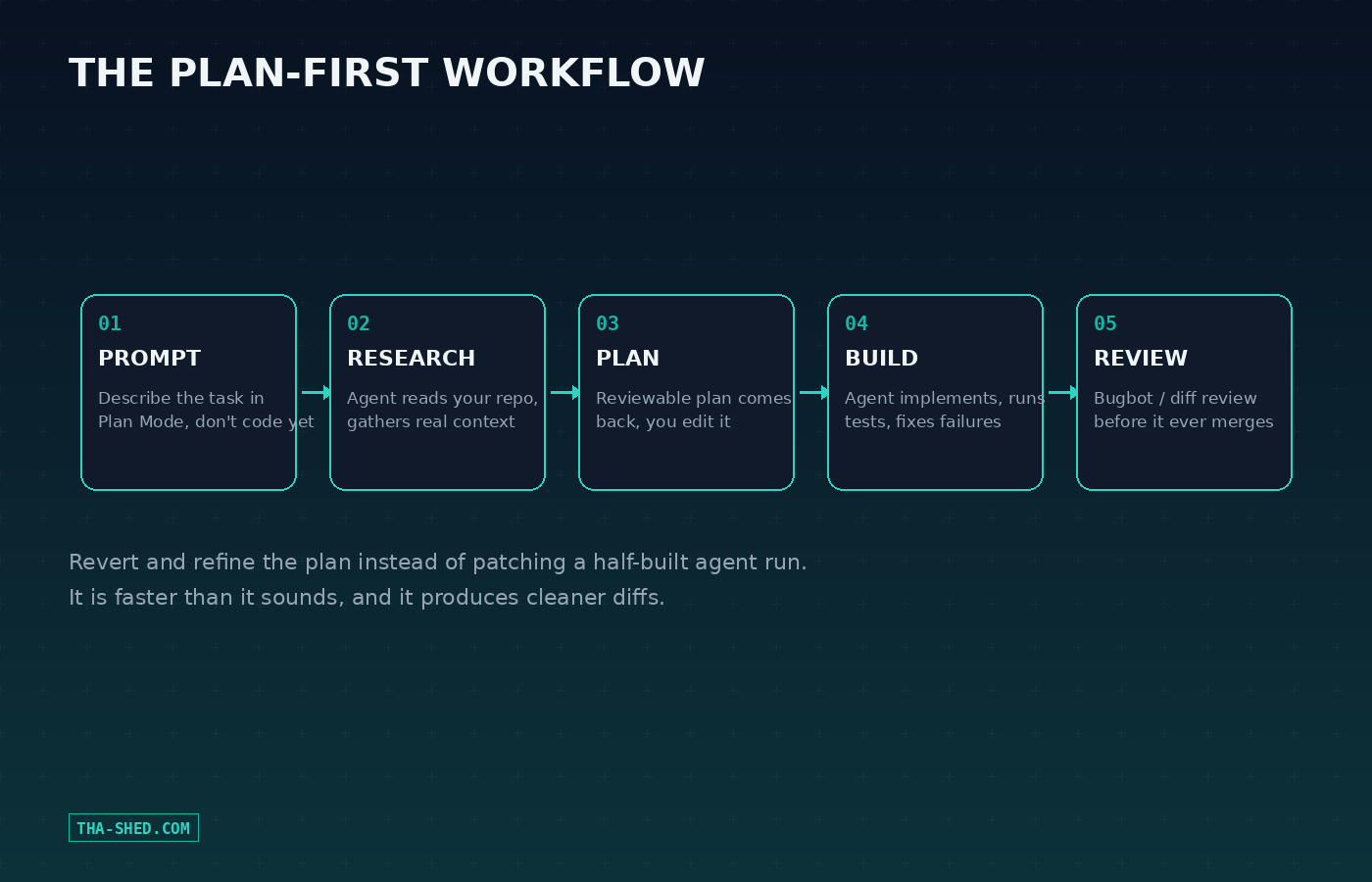
1. Plan-then-build for infra changes
Anything touching Terraform, Kubernetes manifests, or CI config gets the plan treatment. Example prompt: "Plan a change that adds a readiness probe and resource limits to the api-gateway deployment, don't write any code yet." Review the plan, then say "build it."
2. Command-line agent for remote and headless boxes
SSH into a jump box or bastion host, run agent, and you've got the same agent you use locally, no GUI required. Use --mode=ask when you just want it to investigate: "why is disk usage climbing on /var/log, don't change anything."
3. Non-interactive mode inside CI
Cursor's CLI has a print mode built for pipelines: agent -p "review this diff for hardcoded secrets and missing error handling" --output-format json. Wire that into a pre-merge check and you get a structured result you can parse and gate on, no human babysitting required. Worth noting: Cursor has full write access in non-interactive mode, so scope the job and the branch carefully.
4. Bugbot on every pull request
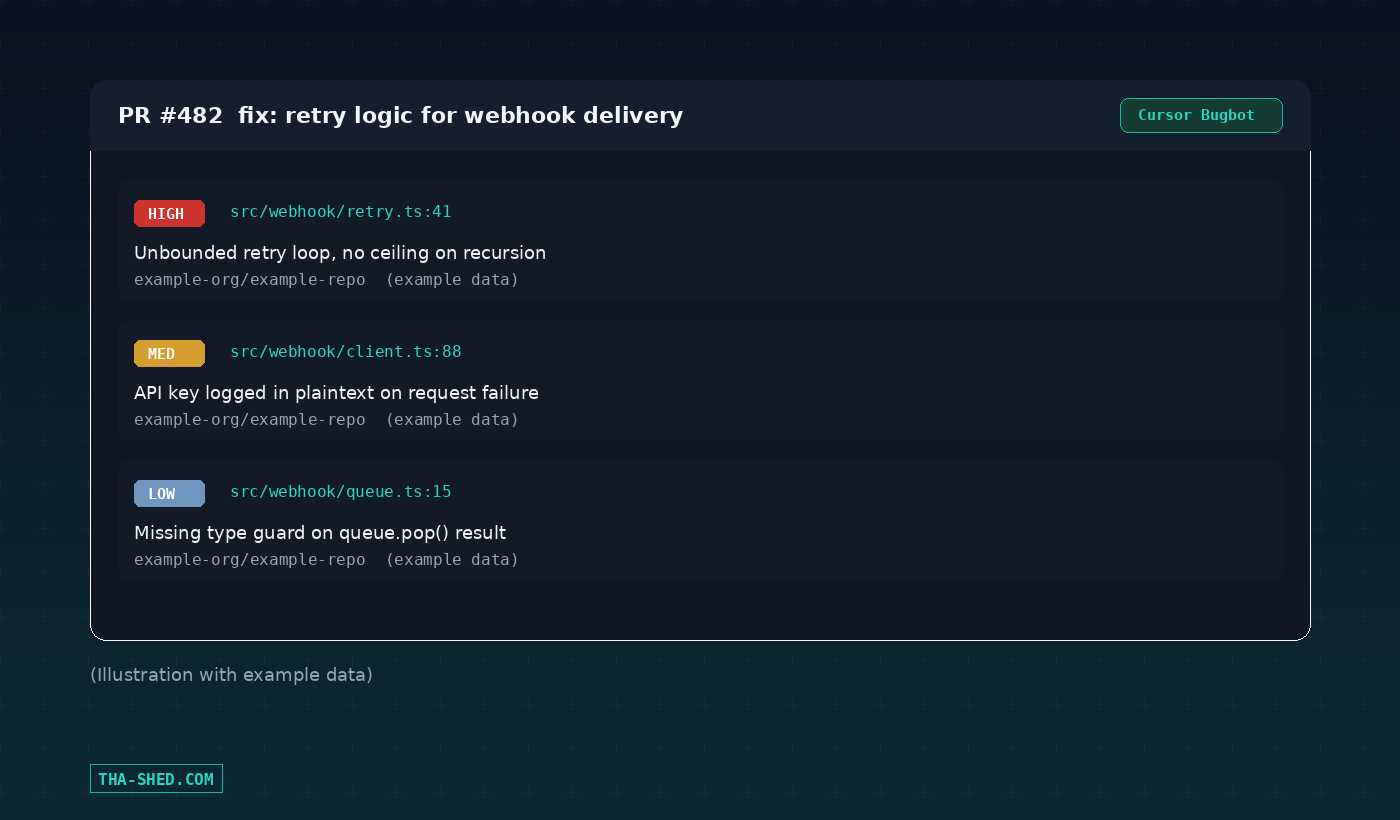
Connect a GitHub, GitLab, or Bitbucket repo to Bugbot and it reviews every PR diff automatically, leaving inline comments on bugs, security issues, and quality problems. Trigger it manually mid-review by commenting cursor review or bugbot run on any PR. Point it at security-sensitive paths with a .cursor/BUGBOT.md file so it knows your auth code and secrets handling deserve extra scrutiny.
5. Run a review from your own agent before you push
You don't have to wait for the PR to open. The /review-bugbot slash command runs the same review logic locally against your branch changes, and it stays in sync with the remote review, so Bugbot skips the redundant re-review once you push.
6. Hook up MCP for the tools you already use
MCP servers connect Cursor to your ticketing system, your internal docs, your cloud provider, whatever you'd otherwise be tab-switching to check. Drop a config into .cursor/mcp.json:
{
  "mcpServers": {
    "internal-docs": {
      "command": "npx",
      "args": ["-y", "mcp-server-docs"],
      "env": { "API_KEY": "${env:DOCS_API_KEY}" }
    }
  }
}
Use ${env:NAME} interpolation so keys stay out of the file itself. Project-level config lives in .cursor/mcp.json, global config in ~/.cursor/mcp.json.
7. Hand off long jobs to a Cloud Agent
Mid-conversation in the CLI, prepend & to a message, for example & refactor the auth module and add tests, and the task moves to Cursor's cloud infrastructure. It keeps running while your laptop is closed. Pick the result back up at cursor.com/agents from any device.
Safety and Gotchas
MCP servers can execute code and reach external services on your behalf. Cursor's own docs recommend verifying the source, reviewing what permissions and data a server touches, using restricted API keys, and auditing anything critical before you install it. Treat a third-party MCP server the same way you'd treat a new dependency in production, because that's basically what it is.
Non-interactive CLI mode has full write access with no approval prompts. That's exactly what makes it useful in CI and exactly what makes a bad prompt dangerous. Scope it to a branch, review the diff before merge, and don't point it at main with blind trust.
Command approval matters too. The CLI asks you to approve or reject terminal commands before running them by default, don't get in the habit of reflexively hitting yes without reading what it's about to run, especially anything touching credentials, DNS, or firewall rules.
Usage and Cost Tips
Cursor runs six plans. Hobby is free with limited agent requests, no card required, good for kicking the tires. Pro runs $20 a month and adds extended agent limits, frontier model access, MCP support, and cloud agents.
Pro+ and Ultra scale agent usage further for people running agents most of the day. Teams starts at $40 per user per month and adds centralized billing, a shared marketplace for rules and MCP servers, and SSO. Annual billing knocks about 20% off any paid tier.
Every paid plan includes a credit pool sized to your subscription; heavier models burn credits faster. If you're running agents in CI or letting Bugbot review every PR automatically, keep an eye on usage-based billing before you scale it across every repo in the org, it adds up faster on a busy monorepo than on a side project.
FAQ
Is Cursor just VS Code with a chatbot bolted on?
No. It's a VS Code fork with the AI wired into the core editing loop, autocomplete, multi-file agent edits, terminal execution, and code review all share the same context instead of being a separate extension bolted on the side.
Can I use Cursor without the GUI at all?
Yes. The CLI agent supports the same modes, rules, and MCP servers as the desktop app, and it's built specifically for headless use on servers and inside CI pipelines.
Does Bugbot replace human code review?
No, and it's not trying to. It catches the mechanical stuff, security patterns, missed error handling, license issues, so your human reviewers spend their time on architecture and business logic instead of re-reading every diff line by line.
Where to Go Next
Start small: install the CLI, run one plan-mode session on a real ticket, and see how much of the plan you'd have written yourself anyway. If you already run Claude Code day to day, our Claude Code tutorial covers the same plan-first mindset from the other side of the aisle. And if you want a structured path through this stuff instead of piecing it together from blog posts, check out our courses.